

A game can acquire a new menu while the app opening it keeps the same version number. A website can also display new artwork after the browser downloads revised files. These changes belong to different layers of software. The installed app, the remotely delivered game, and the browser’s saved resources each have their own update path. Identifying the layer first makes the visible change easier to explain. It also clarifies why a new game screen and an Android download can be separate events.
Map the parts that can change
An Android package and an online game can update independently. For crash duelx apk, the relevant starting point is whether the phone has a verified installed package or is opening a web page. The game name by itself leaves that distinction open.
An installed application has its own package identity and version information. A browser page loads resources from a website. A game may be delivered inside that page or through an application that also provides account access and navigation.
These are general software arrangements, rather than a statement about the architecture of a particular casino title. The actual route can be established from the installed app’s details and the service’s documentation.
Once that route is identified, a change becomes easier to locate: in the Android application, in the remotely supplied content, or in the resources the browser has stored for reuse.
Identify an installed app update
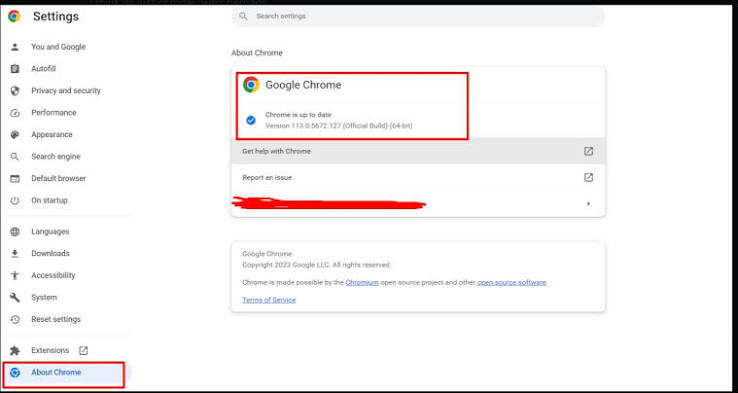
An Android app update changes the installed software package. Android distinguishes the version name shown to users from an internal version code used to order releases. A version label is therefore useful evidence about the application itself.
Record the available details before comparing two installations:
- The full application name and publisher.
- The version displayed in its information screen.
- The source from which it was installed.
- The release description, where one is provided.
Those details establish what was updated. A revised account menu may belong to the host application, while the game it opens can have another delivery process.
An automatic installation can take place between visits. The current version information provides a better reference than remembering whether an update button was pressed. Compare that record with any available release information.
The release description adds context to the number. It may identify changes to navigation or device compatibility. Treat it as information about that release and compare it with the actual part of the application that looks different. This keeps the installed package and the content reached through it clearly identified.
Explain how a game can change remotely
Web-delivered software obtains content from a service. The files sent by that service can change independently of the browser application installed on the phone. A host app can likewise display remotely delivered content, depending on its design.
That arrangement explains why a game menu may change while the browser’s version stays the same. The browser is displaying revised material supplied by the website. Its own software remains a separate product.
Different components can also have separate release schedules. A platform’s navigation and an embedded game may be supplied by different systems. A visible change in one component therefore needs to be described at that level.
Check the service’s notices or release information for an explanation of the revised feature. The most useful description identifies what changed and which component supplies it, rather than treating every visual difference as a new Android installation.
Separate browser cache from account data
A browser cache holds reusable copies of resources from websites. The browser may reuse a stored response or check with the server whether it is still current, according to caching rules. This reduces repeated transfers while allowing updated content to be obtained.
Cached resources can include:
- Images used in the interface.
- Stylesheets controlling visual presentation.
- Scripts used by a web page.
Cookies and other site storage serve different purposes. Cookies can help a site maintain a signed-in session or remember preferences. Chrome presents cached files and cookies as separate categories in its browsing-data controls.
Read the selected categories before changing them. Removing cached files prompts resources to be obtained again when needed. Removing cookies can also change the sign-in state and remembered preferences. The distinction matters because refreshing visual resources and resetting local site information are different operations, even when the controls appear in the same settings area.
Match the visible change to the right layer
Begin with where the service is running. Check the installed application details if an app is involved. For a browser page, identify the website and the part of its interface that changed.
Then compare like with like. An Android version number describes the installed package. A service notice may describe a remotely released game revision. A newly downloaded image or script concerns the resources used to display the page.
Record the visible difference in concrete terms: a relocated menu, revised artwork, or another information panel. That description helps connect the observation with a release note or a specific component. The result is a clearer account of the change: which software was updated, which content was delivered again, and which locally stored resources were involved.
